Add to Claude
claude.ai and the Claude desktop and mobile apps.
Using ChatGPT? Add it to ChatGPT.
Sign in first: The connector is added to your Claude account, so you need to be signed in to claude.ai. You do not need a separate Risale-i Nur account.
Setup
The easiest way is the button below; it works on a computer and in a phone's browser.
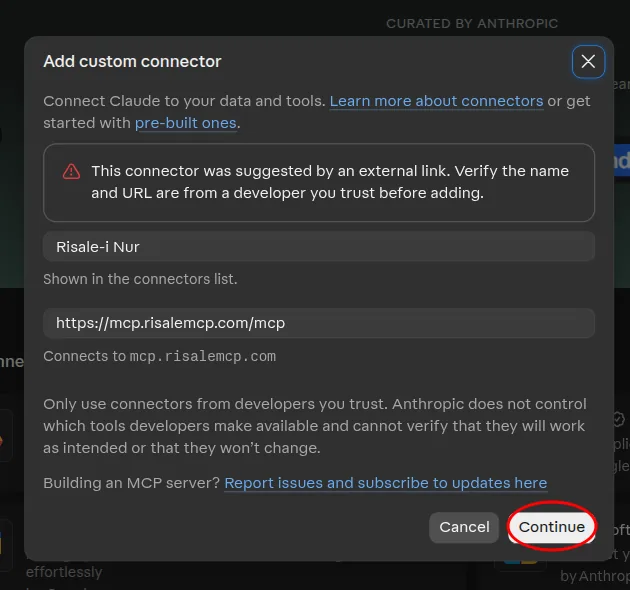
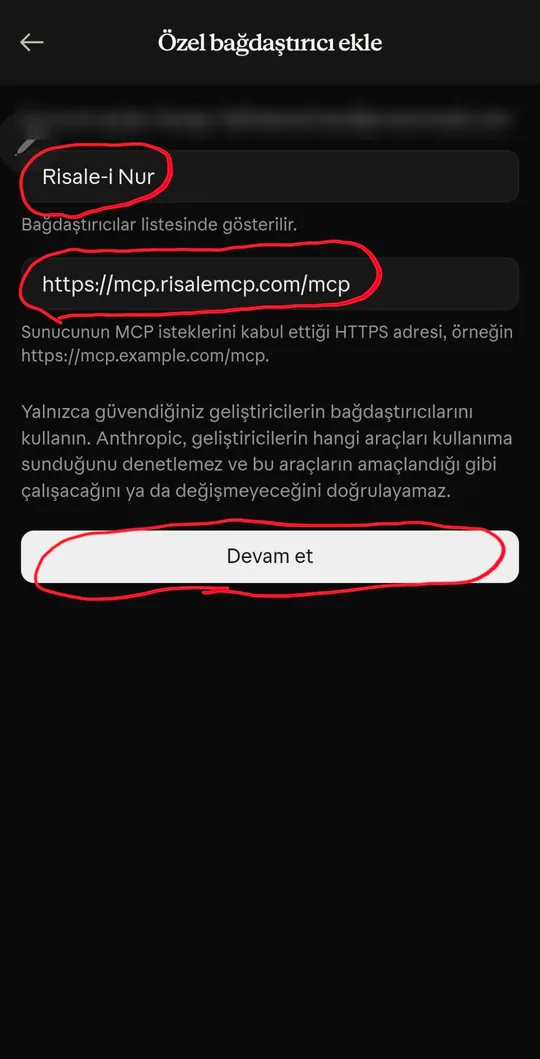
- Add the connector. The button opens the Add custom connector dialog on claude.ai in a new tab with the name and URL filled in. Select Continue.
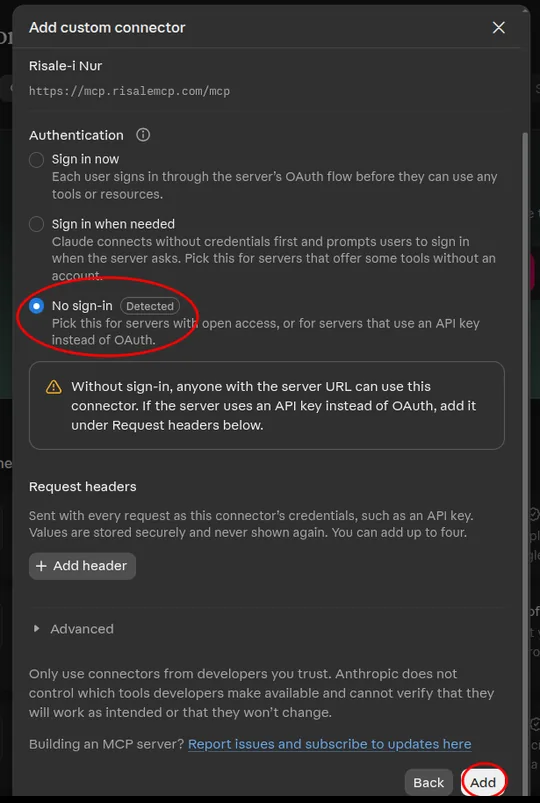
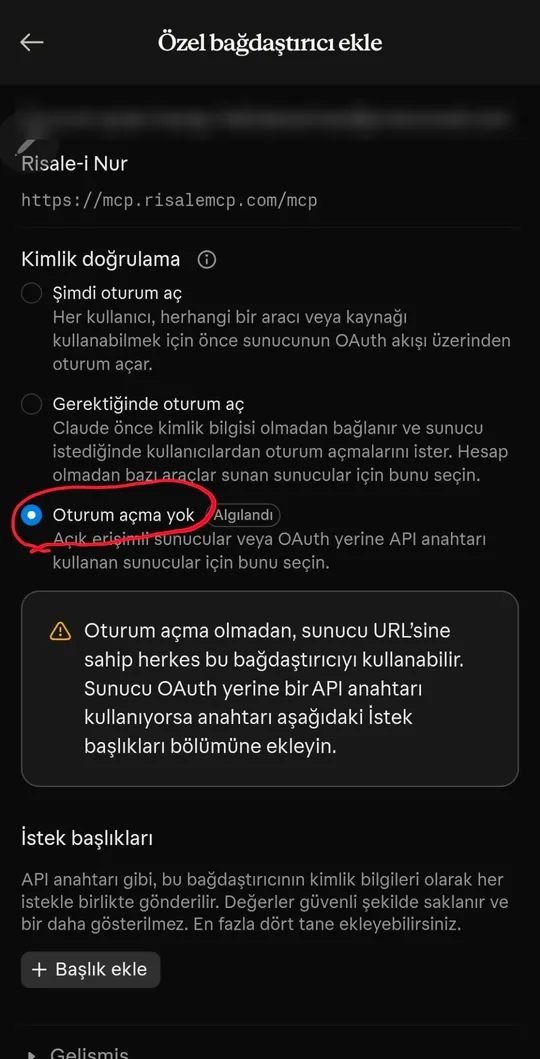
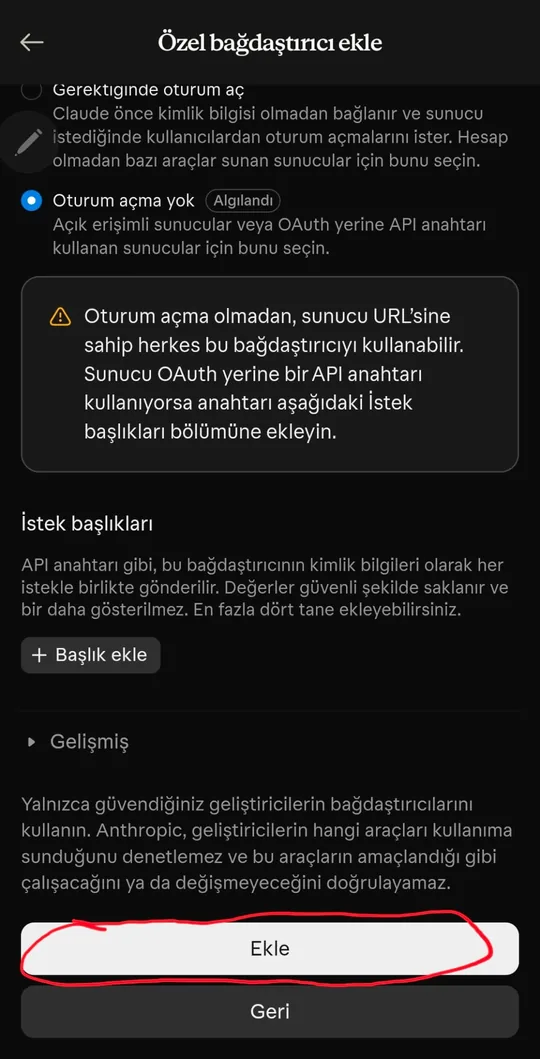
- Confirm. Under Authentication, No sign-in is selected on its own (marked Detected). Leave it and select Add at the bottom.
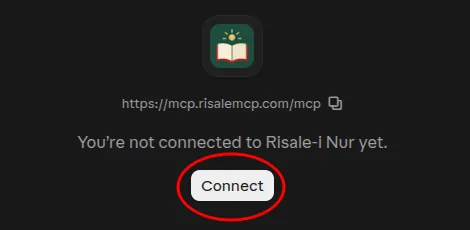
 The connector's page opens next and says "You're not connected to Risale-i Nur yet". Select Connect.
- Start chatting. Refresh the page and start talking about the Risale-i Nur. The connector is enabled in conversations on its own. You can check the setup with one question.
The same steps in a phone's browser (Turkish interface)
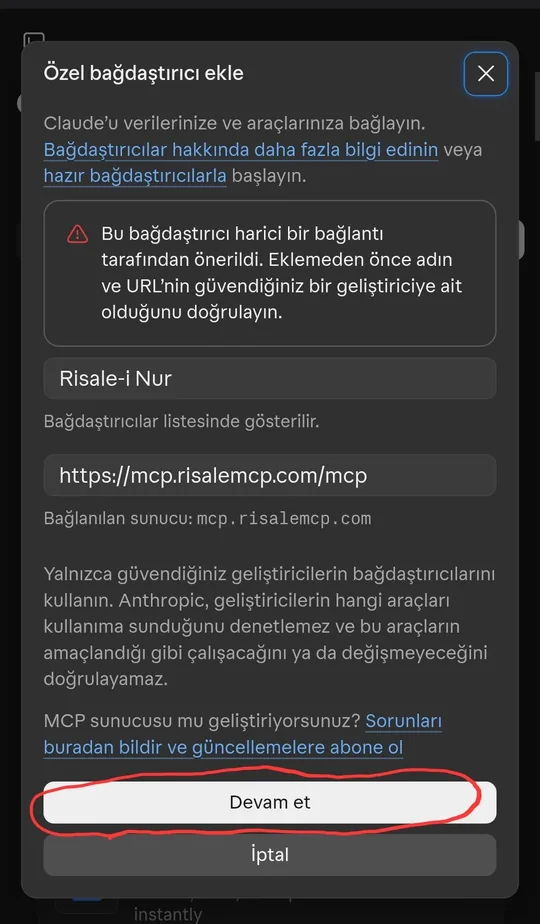
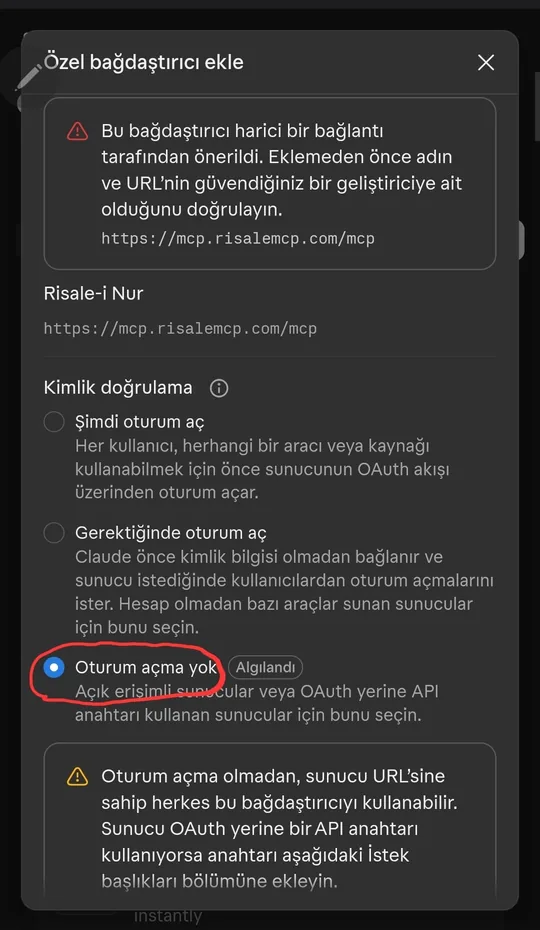
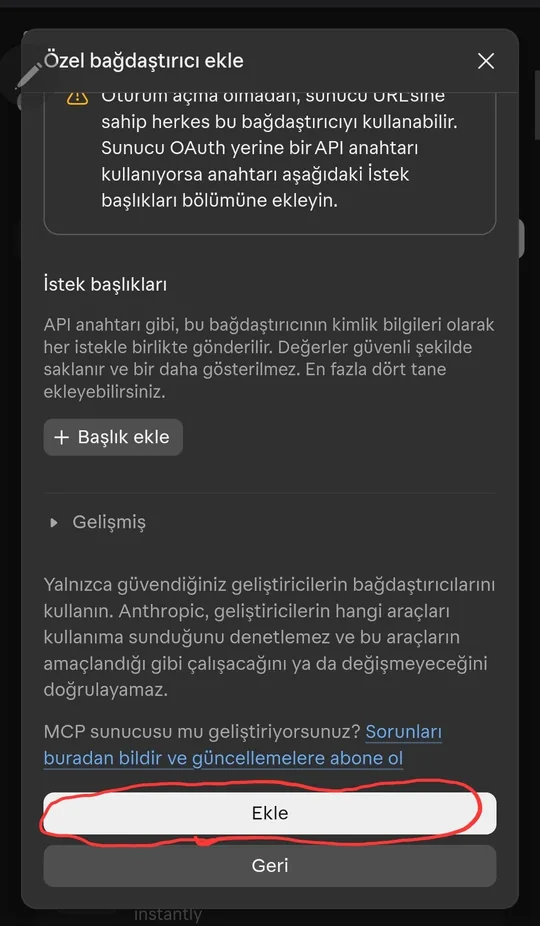
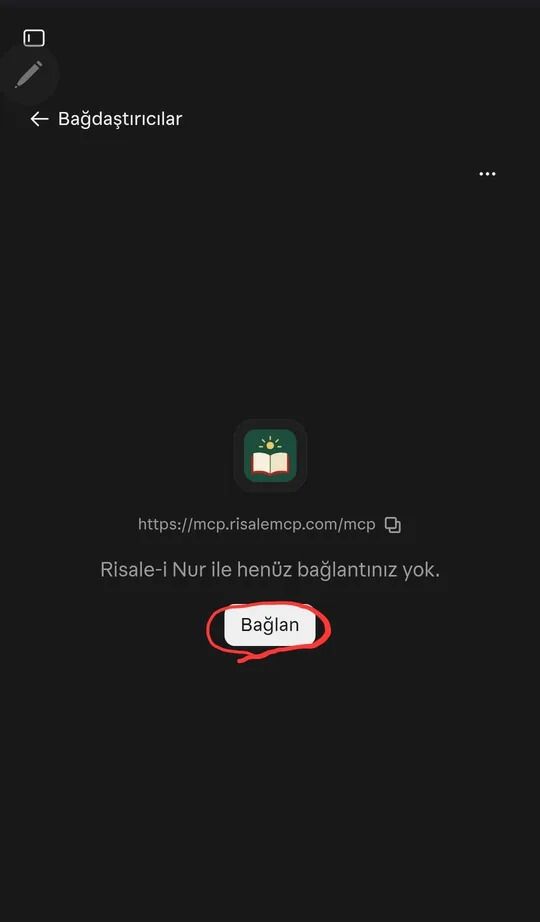
Once added, the connector appears on the web, desktop and mobile with the same account. Claude Code and other details are in the documentation. The screenshots were taken in November 2026; Claude's interface may look slightly different if it changes.
Adding it by hand
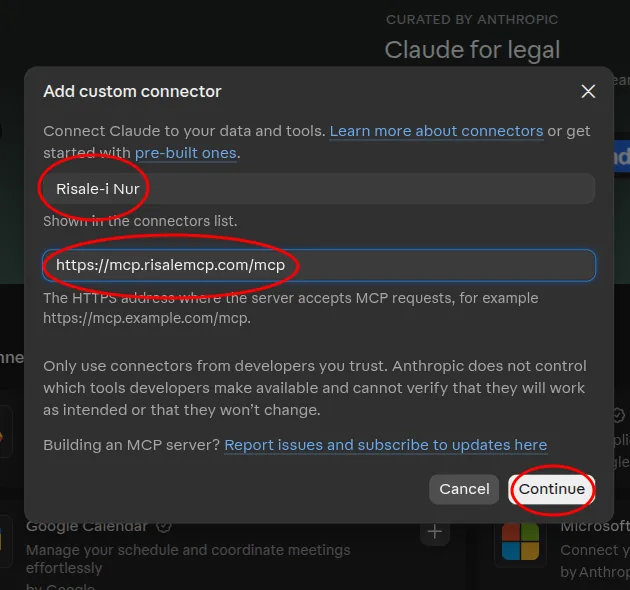
If the button does not work, you can add the connector yourself. Use the name Risale-i Nur and the URL https://mcp.risalemcp.com/mcp.
Web and desktop
- Open Customize in the sidebar.
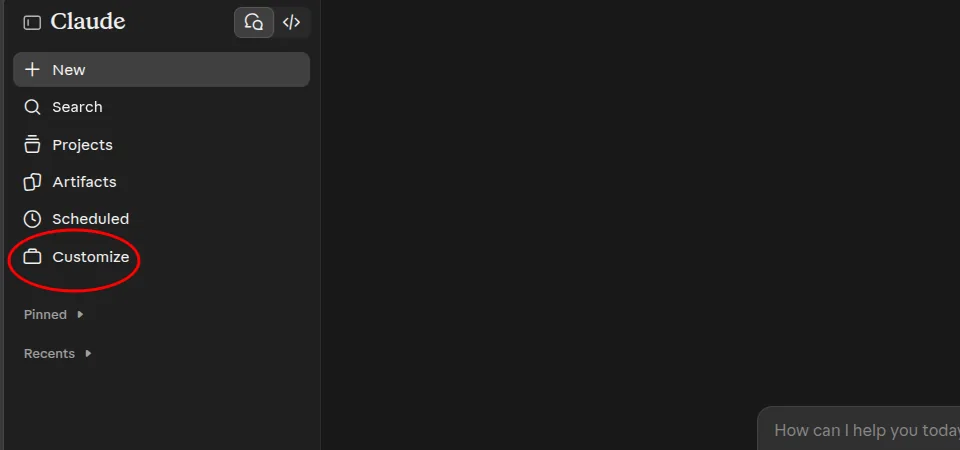
- Switch to the Connectors tab at the top.
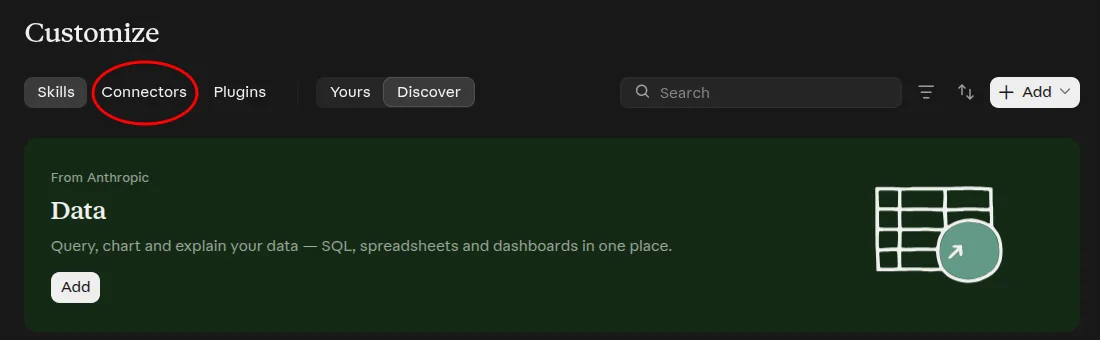
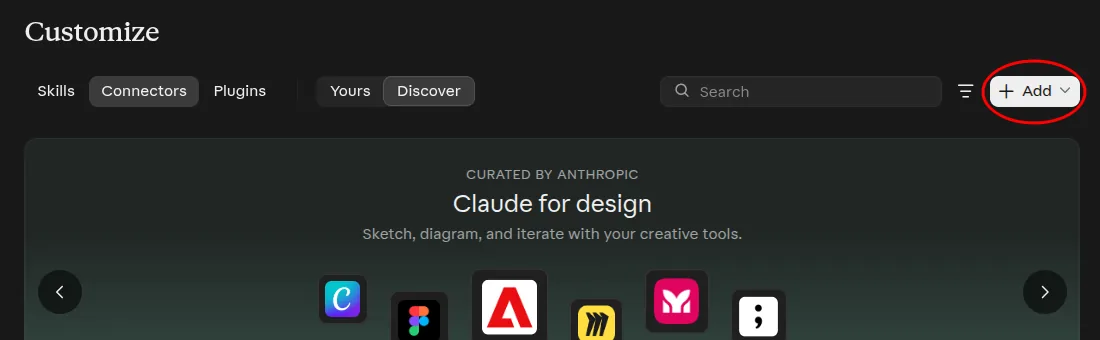
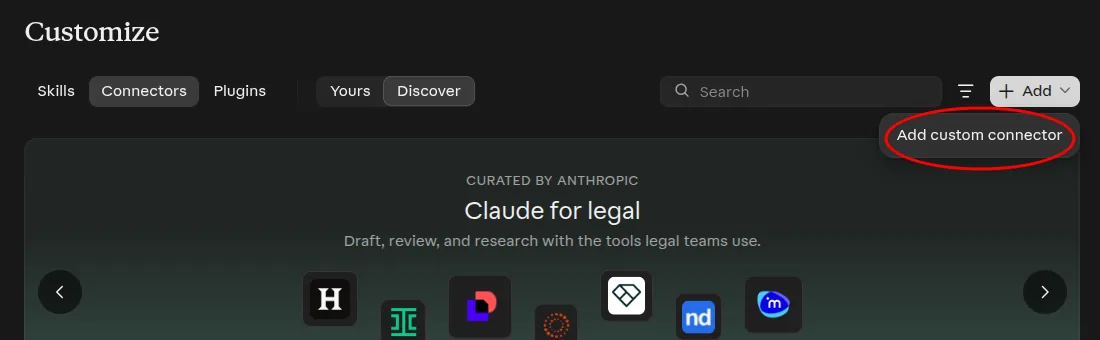
- Select Add at the top right and choose Add custom connector.
- Enter the name and URL and select Continue.
- The rest is as above: leave No sign-in selected, select Add, then select Connect on the page that opens.
Mobile app
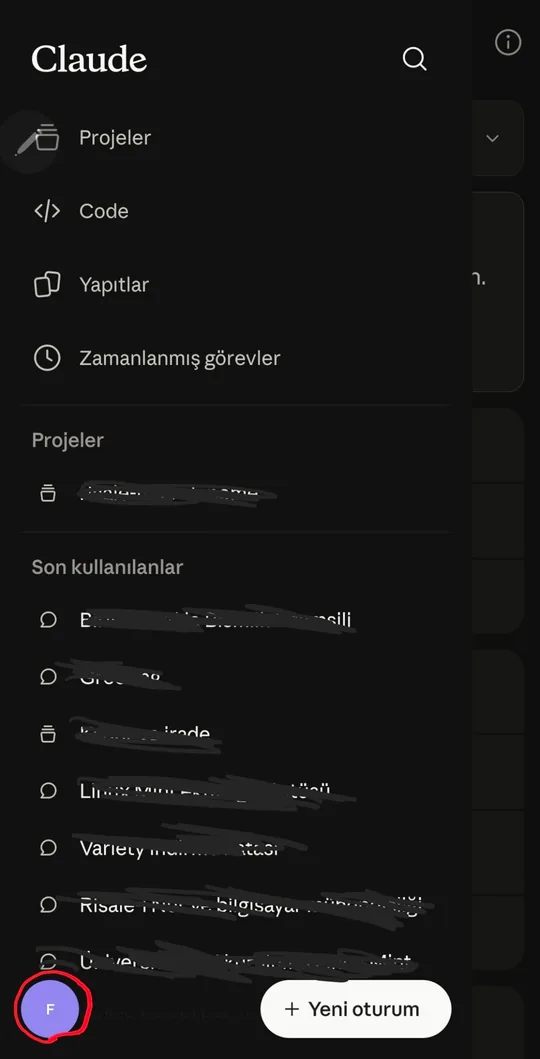
- Open the side menu and tap your profile icon at the bottom left.
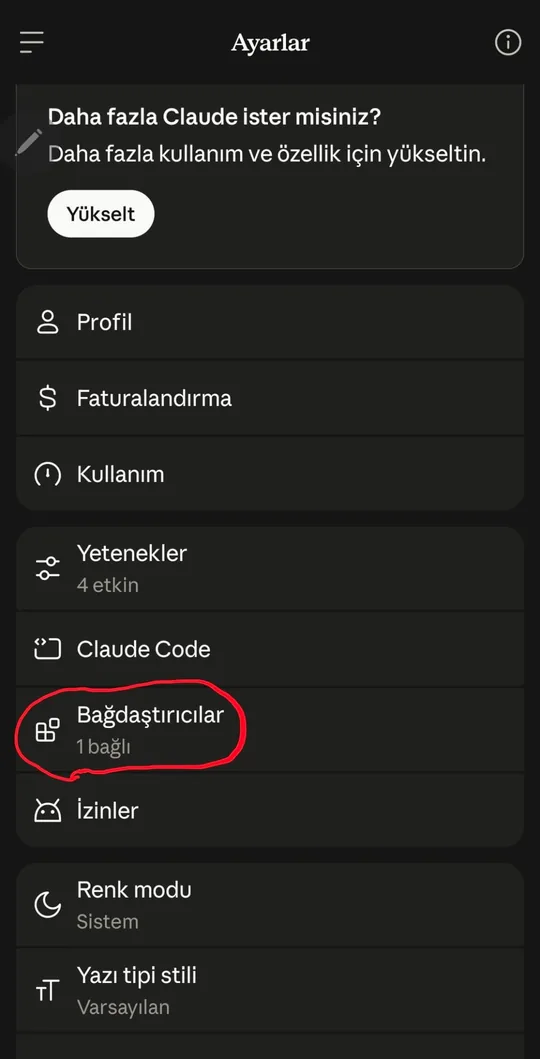
- In Settings, open Connectors.
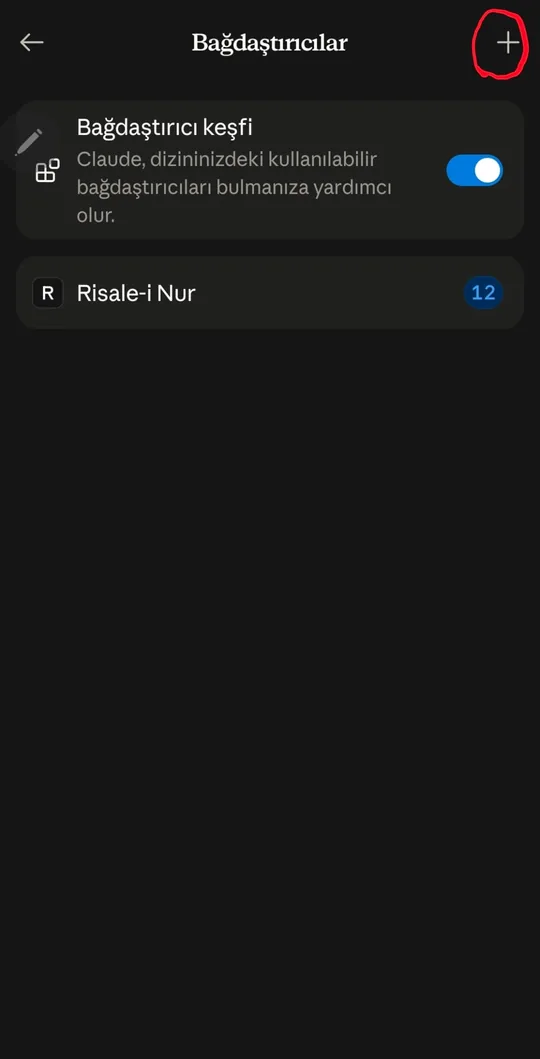
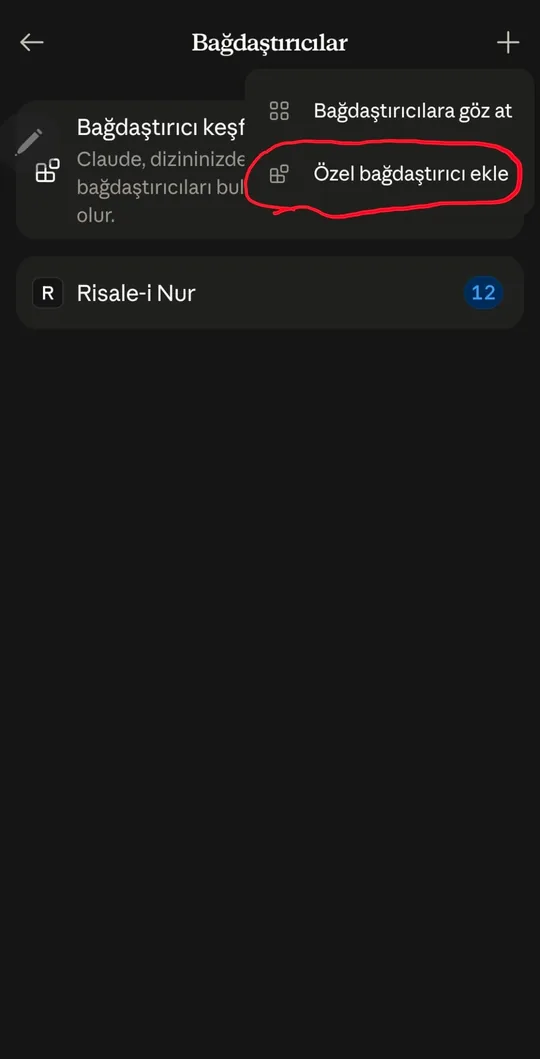
- Tap the + icon at the top right and choose Add custom connector.
- Enter the name and URL and tap Continue.
- Leave No sign-in selected, scroll down and tap Add.
The screenshots below show the Turkish interface.
Project and instructions
The connector works on its own too. For the assistant to read the text, check its quotations and add the bibliography in every answer, we recommend a project with instructions: every conversation in the project starts with them.
Web and desktop
The screenshots in this section show the Turkish interface.
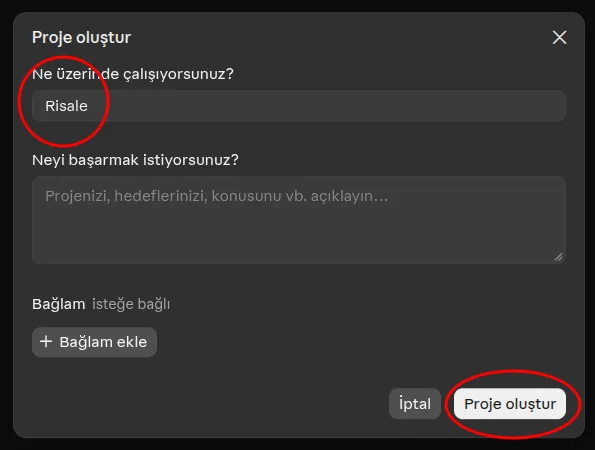
- Open Projects in the sidebar.
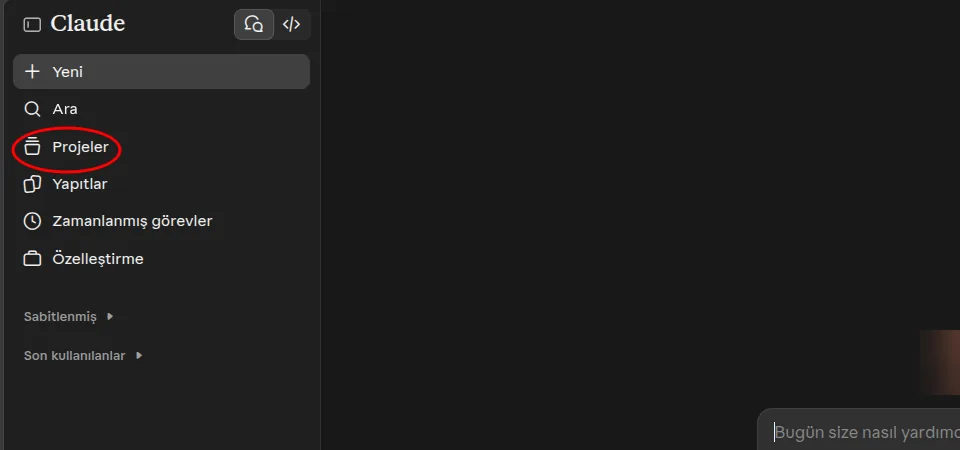
- Select New project at the top right.

- Enter a name, for example "Risale-i Nur", and select Create project.
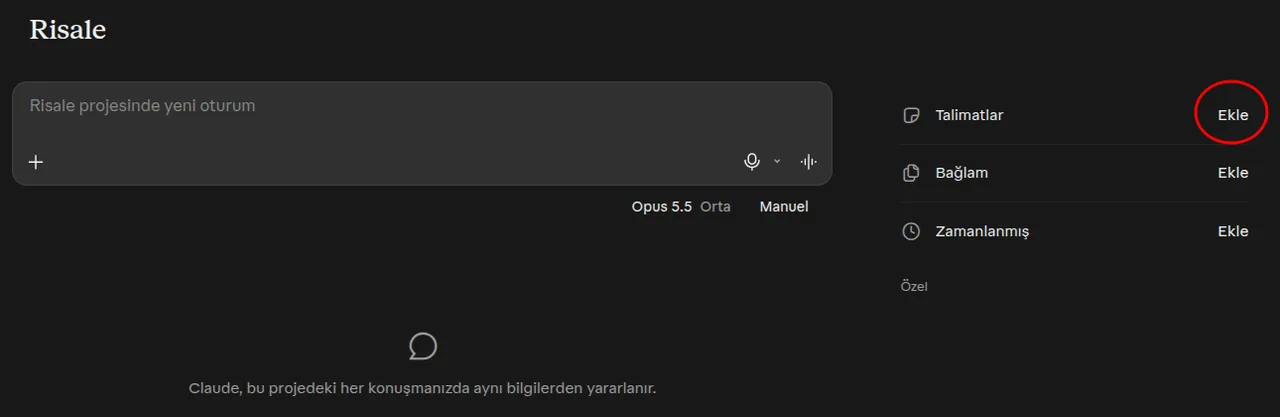
- On the project's page, select Add next to Instructions on the right.
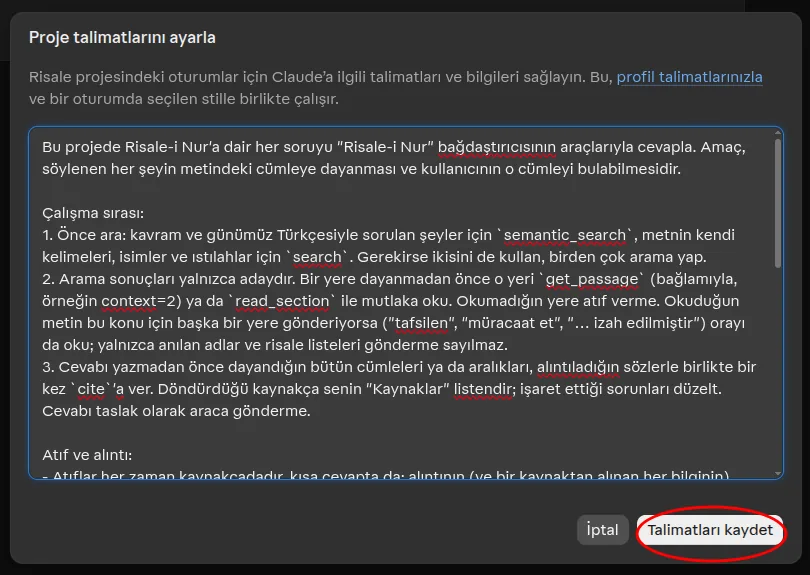
- Copy the instructions below with Copy, paste them into the dialog and save.
- Ask your Risale-i Nur questions in a new conversation inside this project.
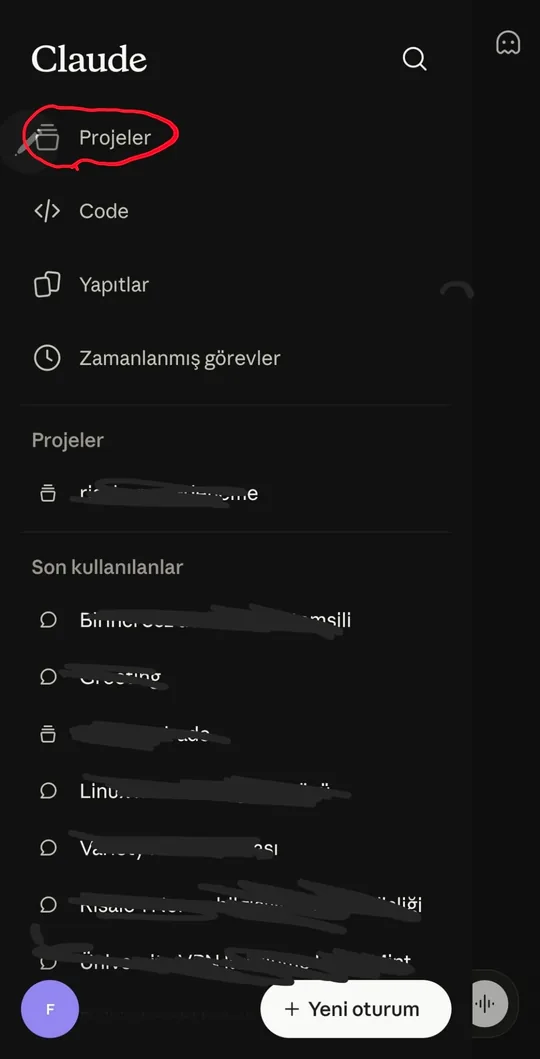
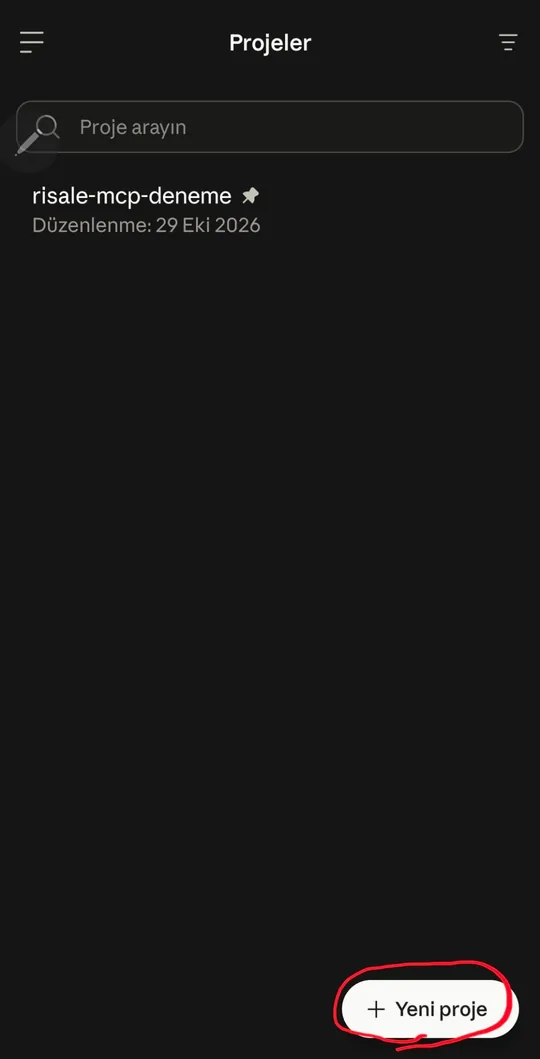
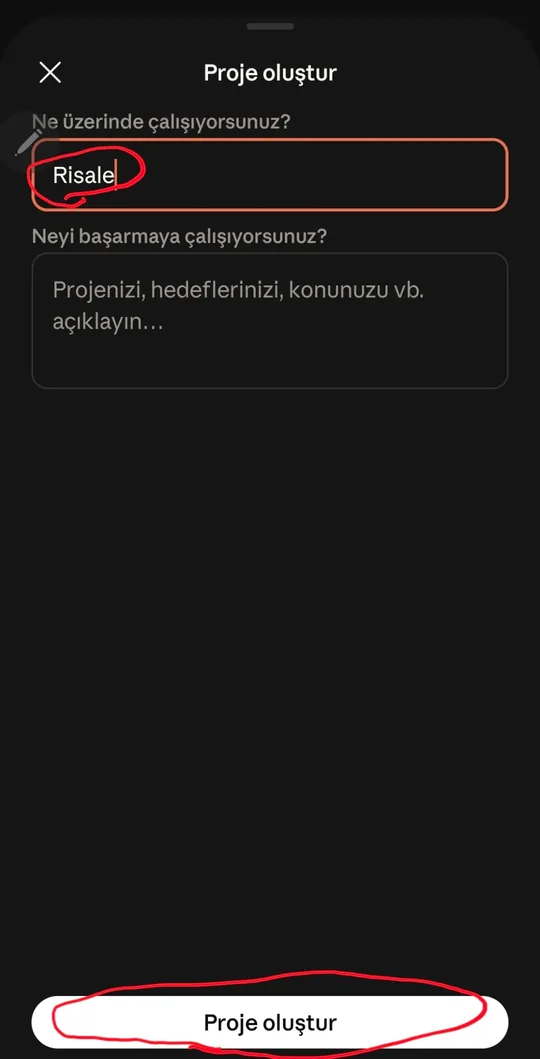
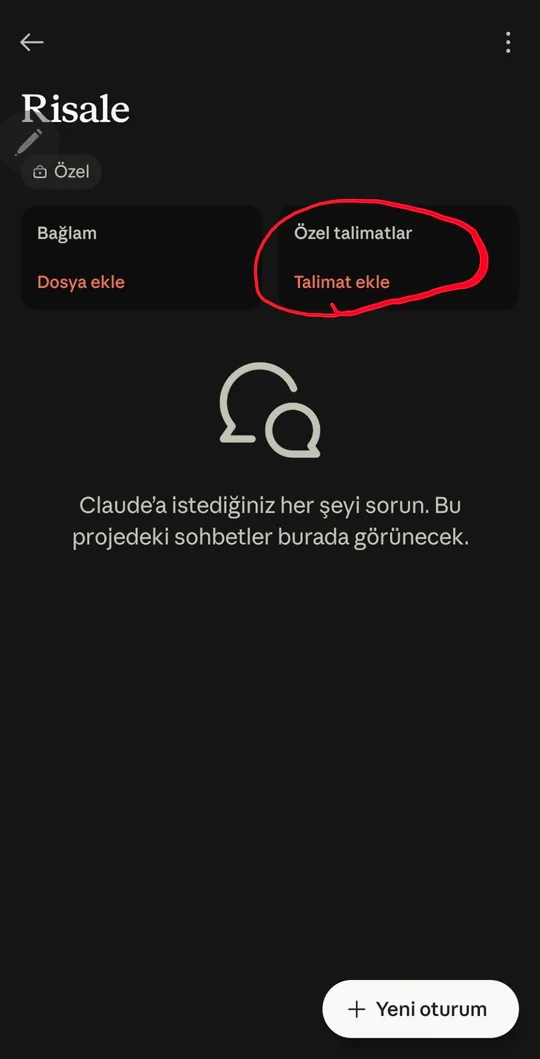
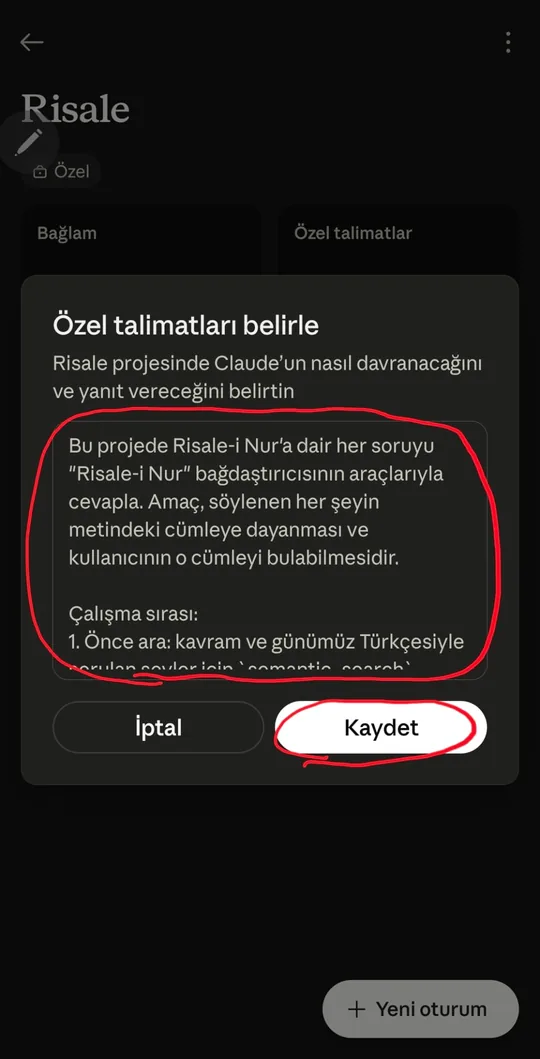
Making a project in the mobile app
- Open Projects in the side menu.
- Tap New project at the bottom right.
- Enter a name and tap Create project.
- Tap the add button under Custom instructions.
- Paste the instructions and tap Save.
Is it working?
After setup, start a new conversation (inside the project, if you made one with the instructions) and ask:
Which parable does the First Word (Birinci Söz) use to explain Bismillah? Show it with a quotation.
The shape of the answer depends on the model and whether you use a project. If the connector works, you will see two things in the answer:
- A quotation from the Risale-i Nur, on its own line and in quotation marks, ending with a number such as
[1]. - A Sources list (in Turkish, Kaynaklar) at the very end: lines numbered
[1],[2], each naming the work and the section.
If the answer has no quotation or no source list, the assistant most likely did not use the connector and answered from memory. See the problems below.
Hadith and Tafsir connectors
You can add two more connectors with the same steps; only the name and address differ:
- Hadis (hadith):
https://hadis.risalemcp.com/mcp(what it offers) - Tefsir (tafsir):
https://tefsir.risalemcp.com/mcp(what it offers)
The three are independent, each switched on and off on its own. With all of them on, the assistant names each source and gives them all in a single bibliography.
Trouble setting it up?
I pressed the button and the add dialog did not open, or a sign-in page appeared
Sign in to claude.ai, come back to this page and press the button again. If the dialog still does not open, add the connector by hand.
There is no "Add custom connector" option
Your plan may not allow custom connectors, or you may have reached the number it allows. Remove a custom connector you no longer use under Customize › Connectors and try again.
A "could not connect" or similar error appears
The URL must be exactly https://mcp.risalemcp.com/mcp, with no space before or after it. Try again a little later; if it persists, write to us.
It is added, but Claude does not use it and answers from memory
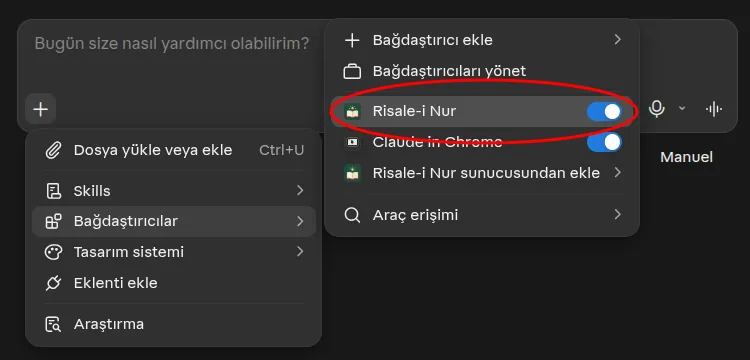
Refresh the page and start a new conversation. Check that Risale-i Nur is switched on under + › Connectors in the message box. Mention "Risale-i Nur" in your question; asking inside a project with the instructions largely solves this.
The connector does not show on my phone
Check that the app is signed in to the same account you added it with, then close and reopen the app.
None of this helped
Write to destek@risalemcp.com: which device you use, at which step you got stuck and what you saw on the screen, with a screenshot if you can. Problems other than setup (daily limit, a tool error) are in the documentation.